
Quickstart
Getting started
Suiviro is a scheduling and reminder system for service businesses - mobile, studio, or both. This walkthrough takes you from sign-up to a real job on the calendar in under ten minutes.
1. Sign up
Create an account at suiviro.com/auth with email and a password, or sign in with Google. Every new business gets a 14-day free trial of the Professional plan - no card required.
2. Run the setup wizard
On first sign-in you'll see a short setup wizard. It asks for:
- Your business name, timezone and country (used for SMS pricing and reminder timing)
- Your service mode: Mobile (you travel), Studio (clients come to you), or Hybrid
- How you'd like to communicate with clients - SMS, email, or both
- Whether to connect Xero now to bring your contacts across
You can skip any step and come back later from Settings → Business Administration → Business Profile.
3. Bring in your clients
Two options:
- Connect Xero and import contacts in one click - see the Xero guide.
- Add them manually from the Clients page as you book them in.
Every new business is pre-seeded with one or two demo clients and jobs so the calendar isn't empty while you find your feet. You can delete the demo data any time.
4. Schedule your first job
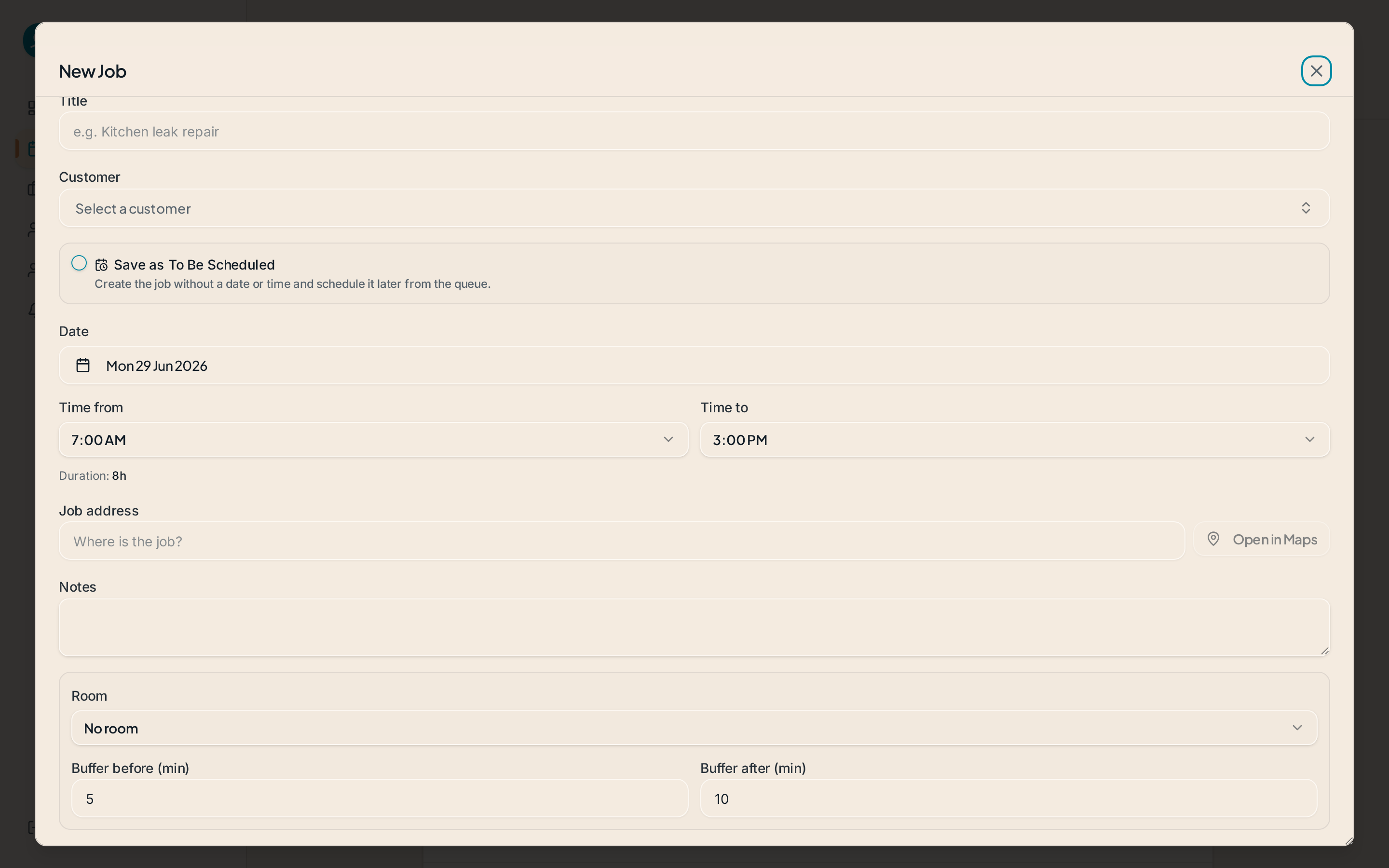
Open the calendar and tap any empty slot, or use the + New job button. Pick a client, assign at least one staff member, set the time, and save. The client receives a confirmation in their preferred channel and an automatic reminder 24 hours before the booking - both are configurable in Notification Settings.
5. Invite staff (optional)
From Settings → Users, send branded invitation emails to your team. They get their own onboarding flow and see only the jobs assigned to them. Read more in Staff & invitations.
What to read next
- Connecting Xero - import contacts, what syncs, and what stays read-only.
- Invoicing with Xero - turn completed jobs into draft invoices.
- Reminders & notifications - set when and how clients hear from you.
- Plans, trials & billing - what's included, what costs extra.
Stuck on a step? Email admin@suiviro.com - a human replies.