
Calendar
Scheduling jobs
Every booking in Suiviro is a job. A job has a client, one or more assigned staff, a time window and a status that walks from scheduled through attended to completed. This page covers the day-to-day actions you'll use most.
Creating a job
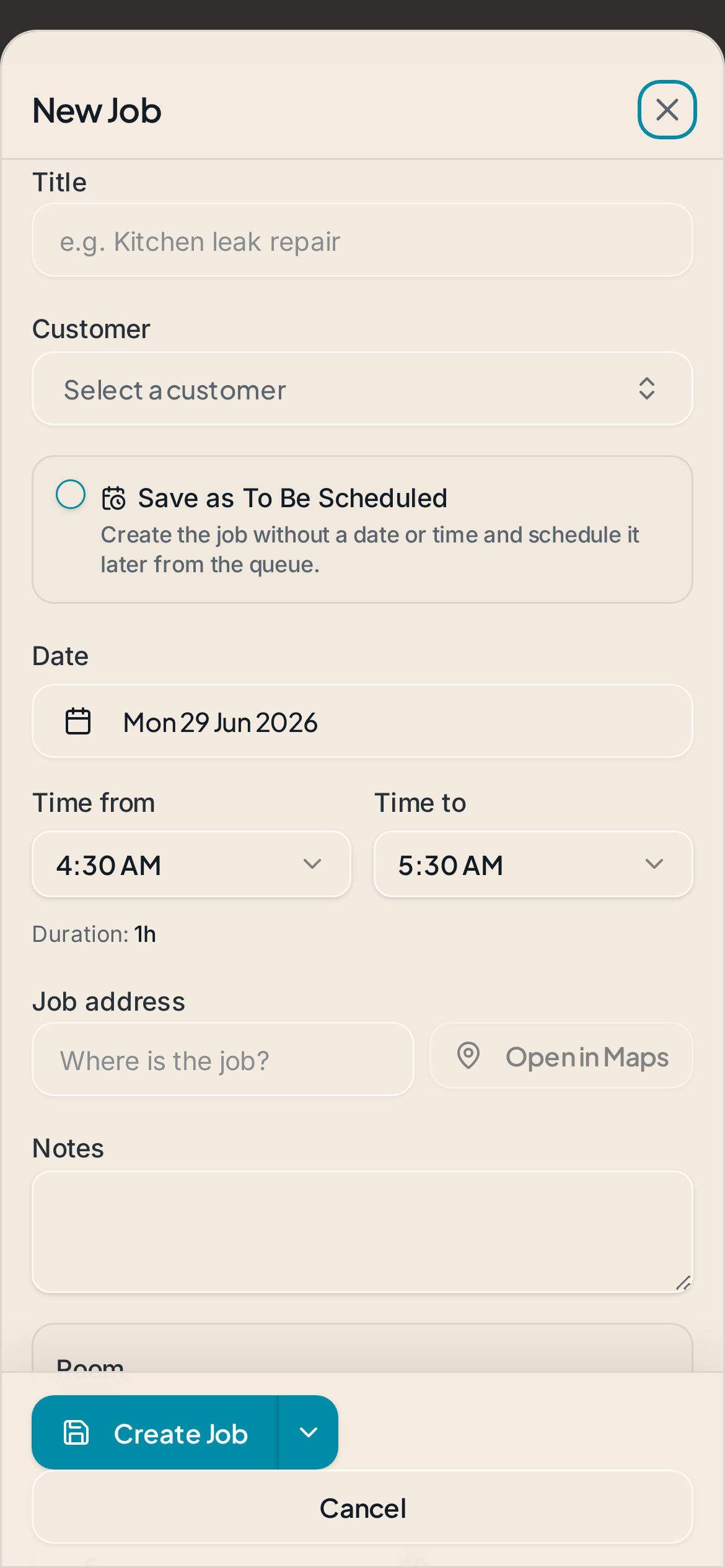
From the calendar, tap an empty slot or hit + New job. You'll need:
- A client (existing or new)
- At least one staff member assigned - saving without one is blocked
- A start time and duration
- Optional: a location, notes, and (studio/hybrid mode) a room and buffer
Studio jobs check for overlapping bookings in the same room and reject the save with a clear message - you won't accidentally double-book a chair or table.
Agenda vs. Timeline view
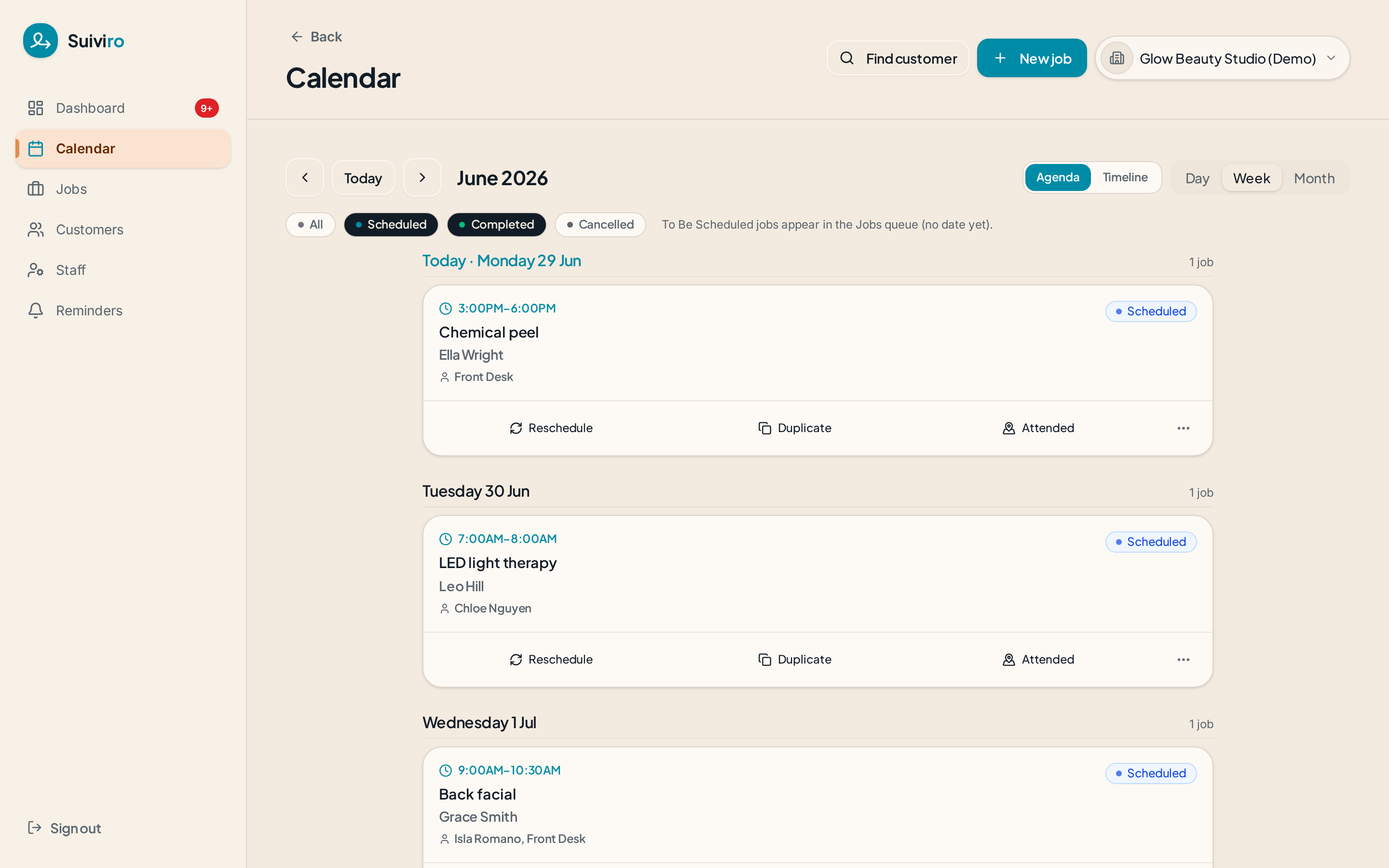
On desktop the calendar opens in Agenda view - a centred, readable list of the day or week. Toggle to Timeline for the traditional grid when you need to see gaps and overlaps visually. Mobile uses the agenda layout by default.
Rescheduling
Every job chip has a ↻ quick-action. Use it to propose up to three alternative times. The client receives an SMS with the options and can confirm in one tap; you'll see their reply in the dashboard inbox. If none of the three works, the conversation falls back to the client portal so you can negotiate freely.
Duplicating
Recurring clients? Open any job and choose Duplicate. The new job copies the client, staff, duration and notes - you just pick the new time.
Mark as Attended / Completed
At the end of the visit, tap Mark as Attended - this logs the job for hours and reporting but does not notify the client. When the work is genuinely finished, tap Mark as Completed; that triggers the review request (or follow-up SMS/email, depending on your notification settings).
If a job happened without ever being on the calendar, use Log job from the customer file - it creates the job and marks it attended in one step.
End-of-day log nudge
At 5:30pm local time, Suiviro emails any staff with unlogged jobs from the day so nothing slips through. Disable or change the time in Settings → Automations → Notification Settings.
Where the data goes
Attended and completed jobs feed the Monthly Reports page (staff hours, locations, clients seen), available on Professional and Professional Plus.